Meet App Media Studio, App Store previews and screenshots made from a screen recording
Every app release ends the same way. App Store Connect wants a 15 to 30 second preview video at exact pixel sizes, with an audio track, plus screenshots for each device. Then the UI changes and it all has to be done again.
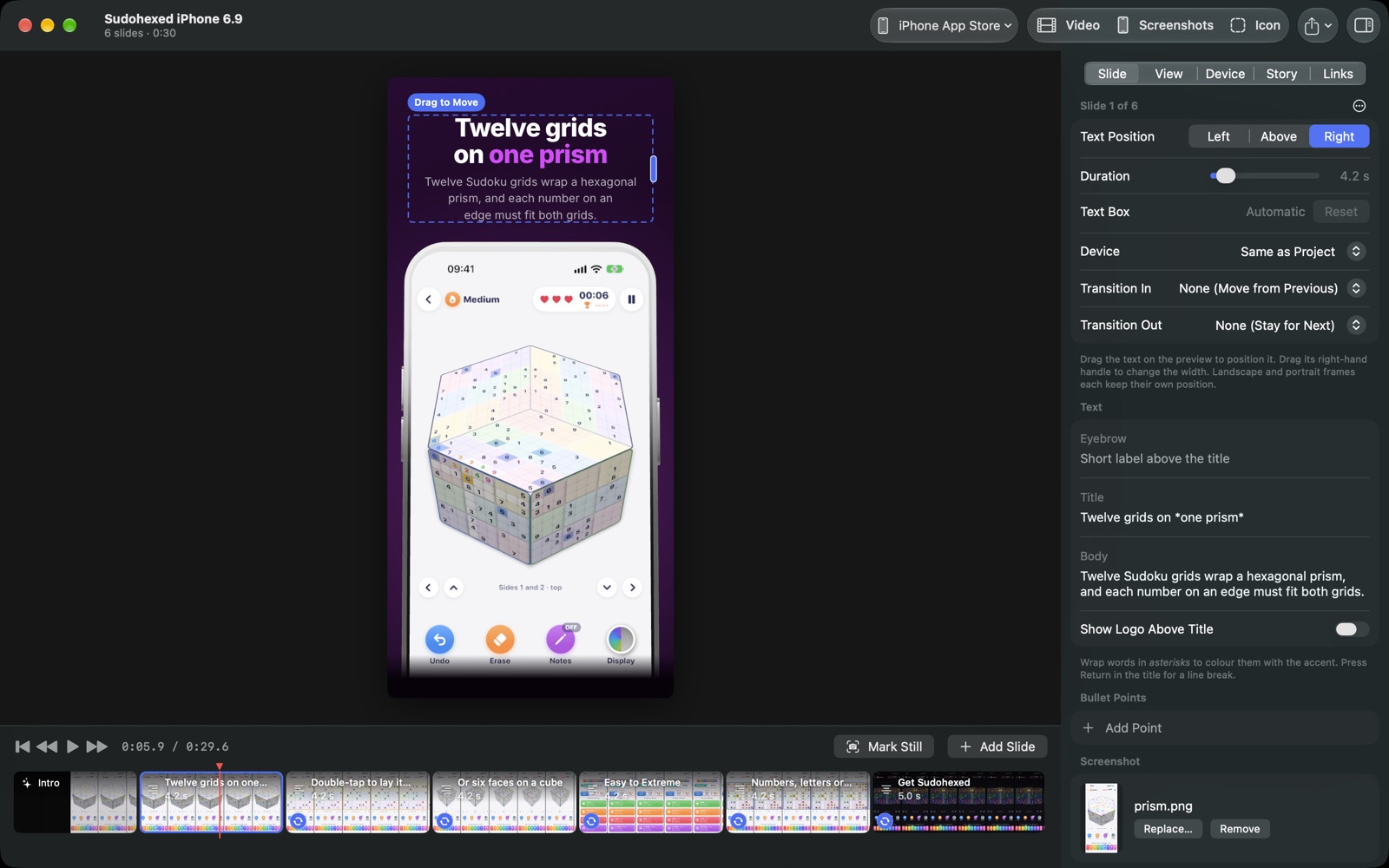
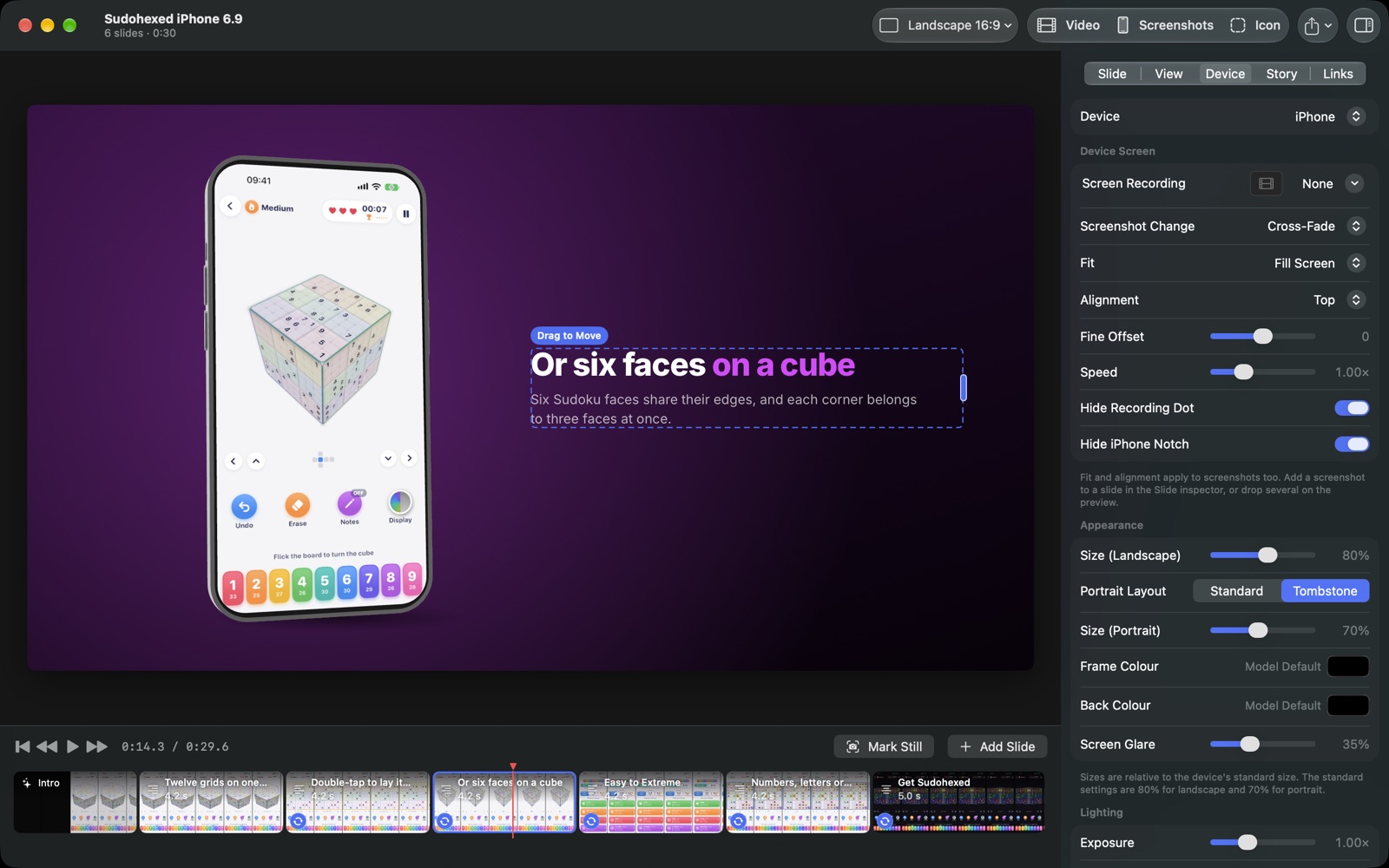
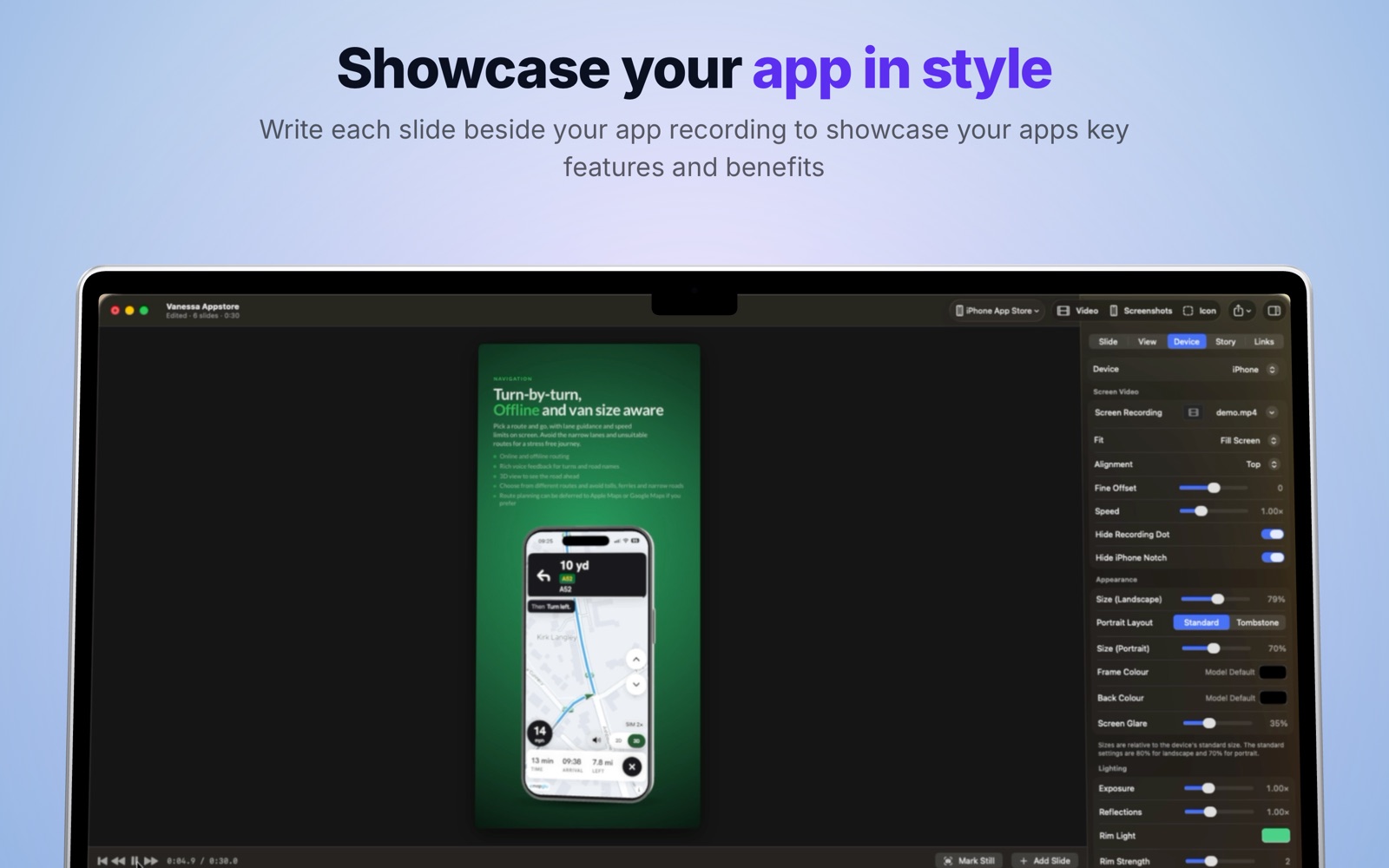
We kept losing weekends to this in video editors, so we built App Media Studio. It's a native Mac app: drop in a screen recording of your app, and it plays on a 3D iPhone, iPad, Mac or Android device with your text beside it. Then export previews and screenshots at the sizes Apple accepts.
This post is about how it works.
A native Mac app with a 3D engine inside
App Media Studio is written in SwiftUI and AppKit for macOS 15 and later, and picks up Liquid Glass on macOS 26. It uses no third-party Swift packages or binaries.
The 3D scene is a separate engine written in JavaScript with three.js, running inside a WKWebView. We chose that split so the same engine could run in the Mac app and on the web. The animated device at the top of our App Media Studio page is that engine, running live in your browser.
- A two-way bridge. Swift drives the engine through a small JavaScript API, and the engine reports back through WebKit message handlers.
- Media over a custom URL scheme. Recordings are served to the web view through an ams:// scheme that supports HTTP byte ranges, which video seeking needs.
- Realistic rendering. The scene uses ACES filmic tone mapping and an environment map for reflections on the glass and frame. Settings for exposure, reflections, rim light and screen glare are all exposed in the app.
- Small device models. Each device is prepared in Blender with a script that stands it upright and cuts a flat screen mesh from the display, then compressed with gltf-transform. One model went from 76 MB to 5 MB.
Exporting video frame by frame
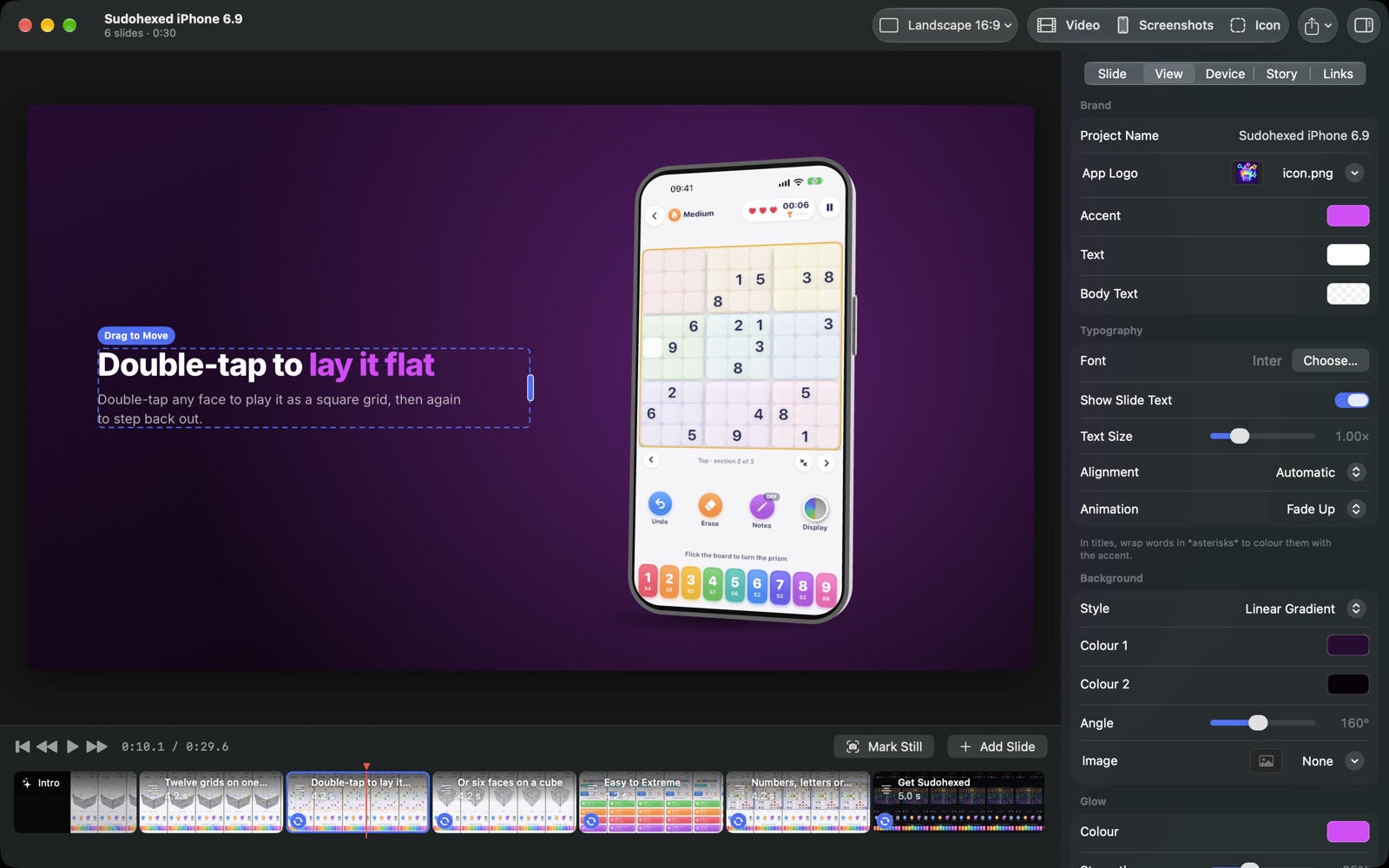
Exporting is where most of the engineering went. A screen recording plays in real time, but an export has to capture every frame exactly, however long each one takes to draw.
- Frame-accurate seeking. For each frame the engine seeks the video and waits until that exact frame is on screen. WebKit sometimes shows the previous frame after a seek, so the engine works around it before the frame is captured.
- Rendered off screen. The export draws in a hidden window, positioned off screen and locked there so macOS can't move it back.
- Encoded with AVFoundation. Each frame is captured and passed to AVAssetWriter as H.264, HEVC or ProRes 422 HQ, tagged with the right colour space. The bitrate is worked out from the frame size, and audio is written alongside the video so the encoder never stalls.
- The audio Apple needs. App Store Connect rejects previews without an audio track, so a silent stereo track is always added, or your own music if you choose some.
Built around Apple's rules
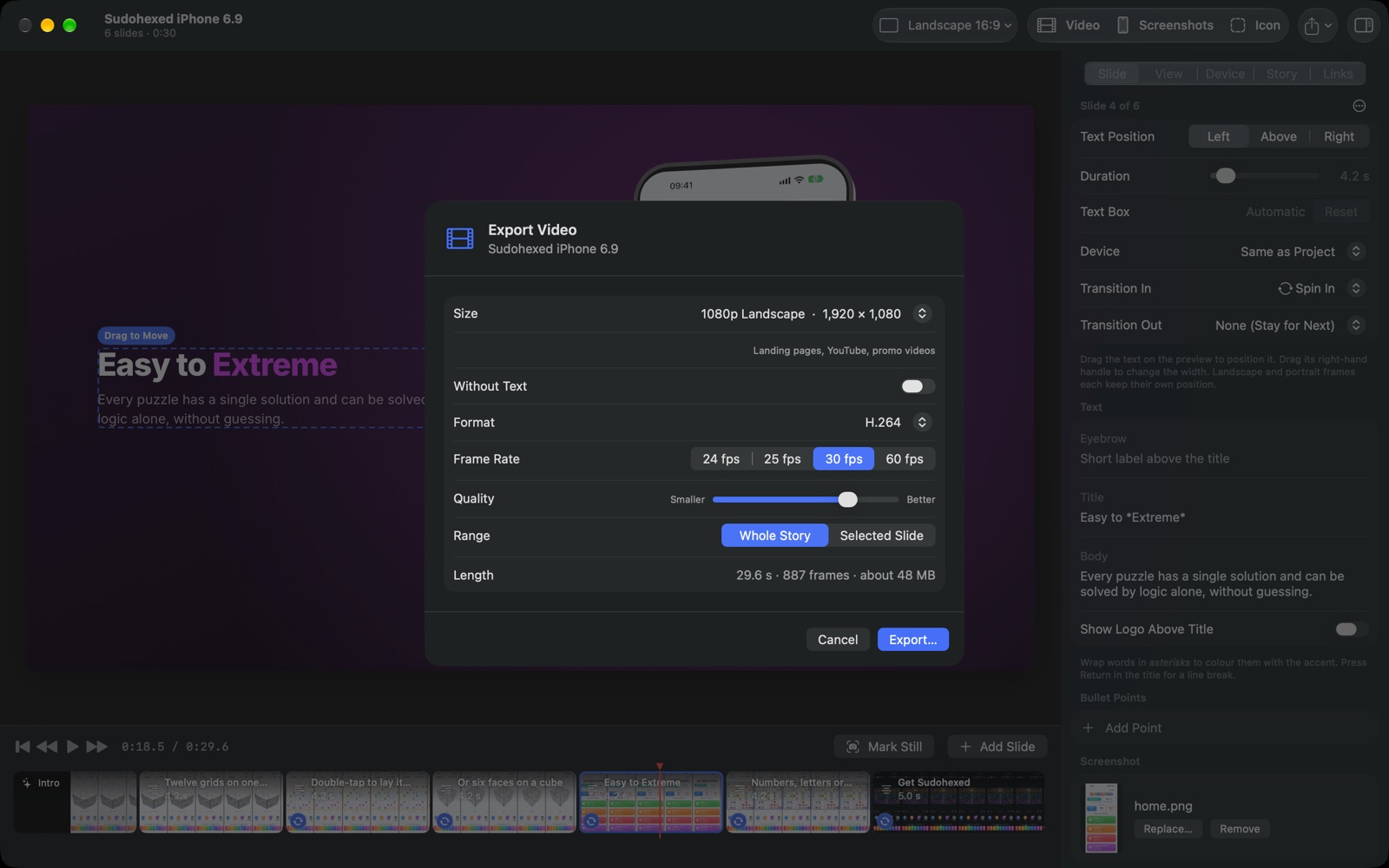
Most preview rejections come from details: the wrong size, too many frames per second, or a video that's too long. App Media Studio checks them before you upload.
- Exact sizes. Presets cover Apple's app preview sizes for iPhone, iPad and Mac, and the screenshot sizes App Store Connect accepts for each.
- Checks before upload. The export sheet warns if the cut runs outside 15 to 30 seconds or above 30 frames per second.
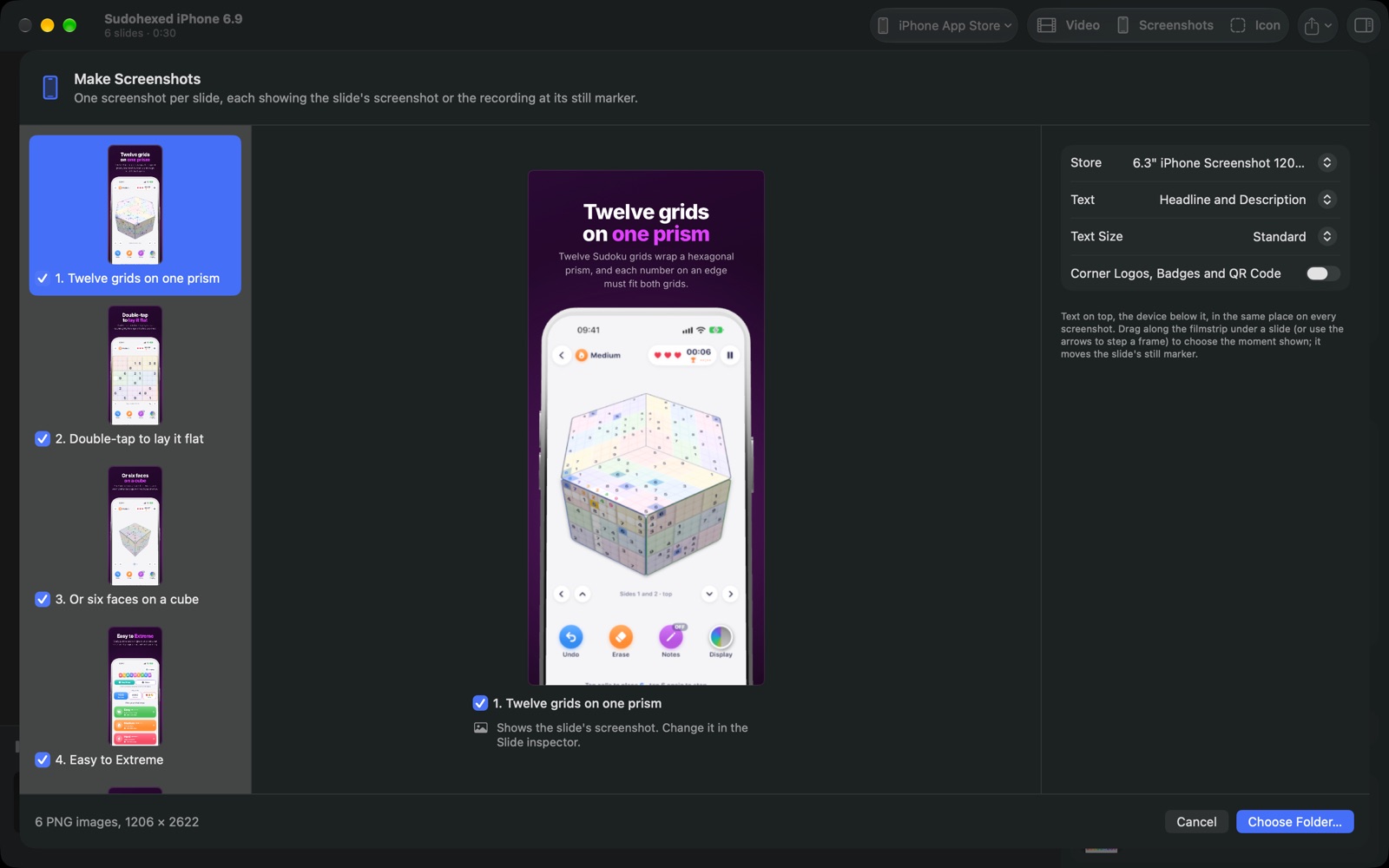
- Screenshots from the same project. Mark frames on the timeline and export them as screenshots. Each marker is stored relative to its slide, so it moves with the slide when the timing changes.
- Other stores too. There are presets for Google Play phone and tablet screenshots, the Play feature graphic and promo video, and vertical and square video for social media. Exported images have no transparency, because Google Play only accepts 24-bit PNGs.
- No recording dot. iOS shows a red dot in the Dynamic Island while the screen is being recorded. The engine traces the shape of the island and paints over the dot, so it never appears in a preview.
Projects as plain files, ready for AI
A project is a .ams file: a zip holding a JSON description of the slides and a manifest. It links to your recording rather than copying it, so most projects are under 100 KB, easy to read and easy to compare between versions. When the next release changes the UI, you swap in a new recording and export again. Your slides, colours, layout and screenshot markers stay as they were.
Because the format is plain JSON, an AI assistant can write it. App Media Studio includes an agent skill: one click installs it in Claude Code, or you can copy the prompt into any assistant that can run commands and look at images. The agent pulls scene-change frames from your recording to see what your app does, asks a short set of questions about what the video is for, picks a device to match the recording, then writes a project for you to polish.
We used App Media Studio to make its own App Store screenshots:
Private by design
App Media Studio is sandboxed. It can only open files you choose, and its only network use is loading fonts from Google Fonts. There are no accounts, no analytics and no crash reporting, and its privacy manifest declares no data collected.
Every feature works in the free version, with a faint watermark on exports. Buying the full version once removes it. The purchase uses StoreKit 2 and is checked on the Mac, so it works offline.
What this means for your project
App Media Studio is our own product, but the skills behind it are the ones we bring to client work: native Apple development, 3D graphics, video processing, and making web and native code work together without either side feeling like a compromise.
You can download App Media Studio from the Mac App Store.
Coming next · added 16 November 2026
An update is on the way
- iPhone Duo. Apple's new folding iPhone, with a 3D model that folds and opens between slides, and screenshot presets for both the folded and open screens.
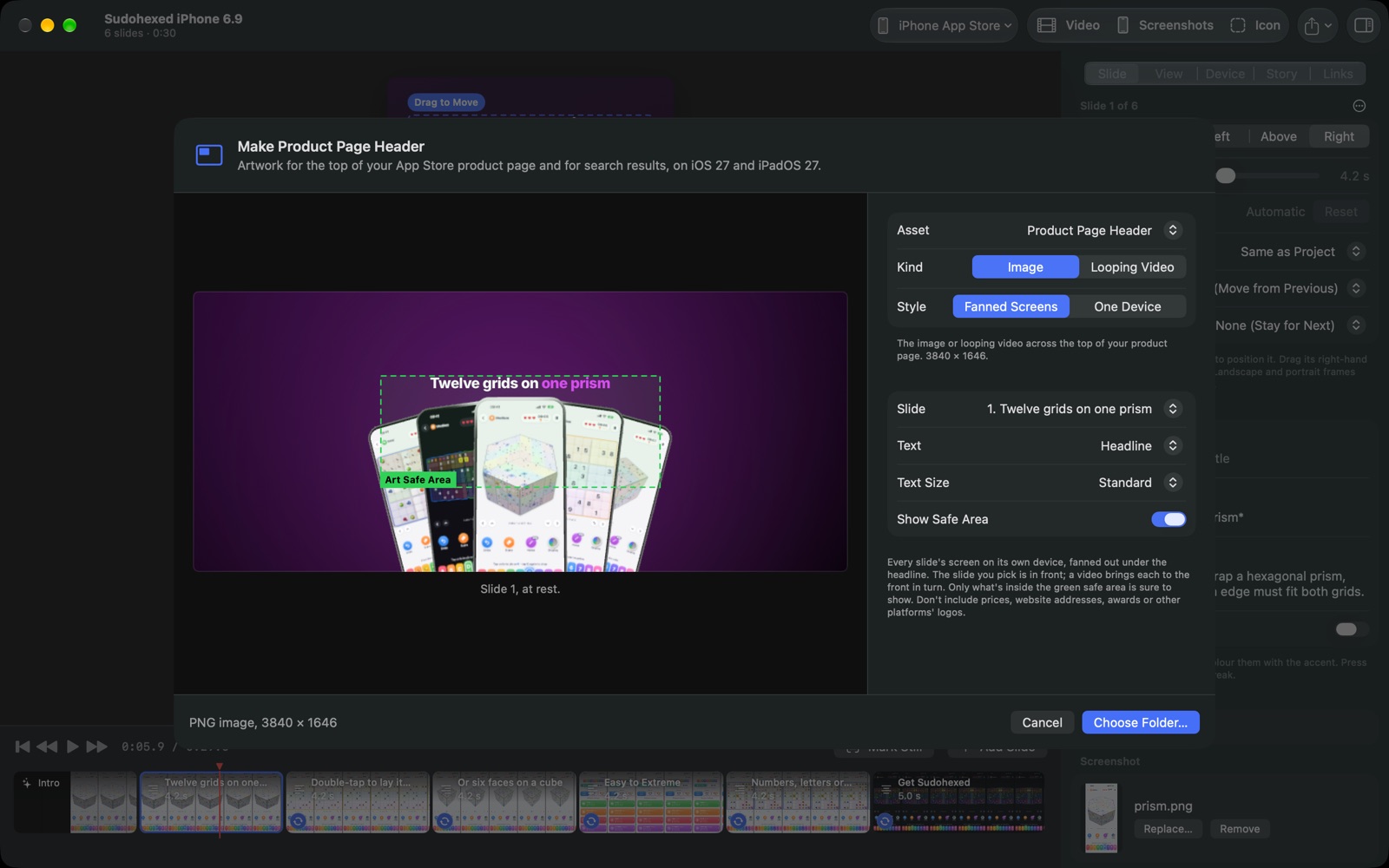
- App Store header and search result banners. Artwork at Apple's sizes for the App Store page header and search results, with Apple's safe areas built in.
- A card layout that looks like an App Store search result.
Have an app or tool in mind?
We design and build native Mac, iPhone and Android apps, and the systems behind them. Tell us what you need.